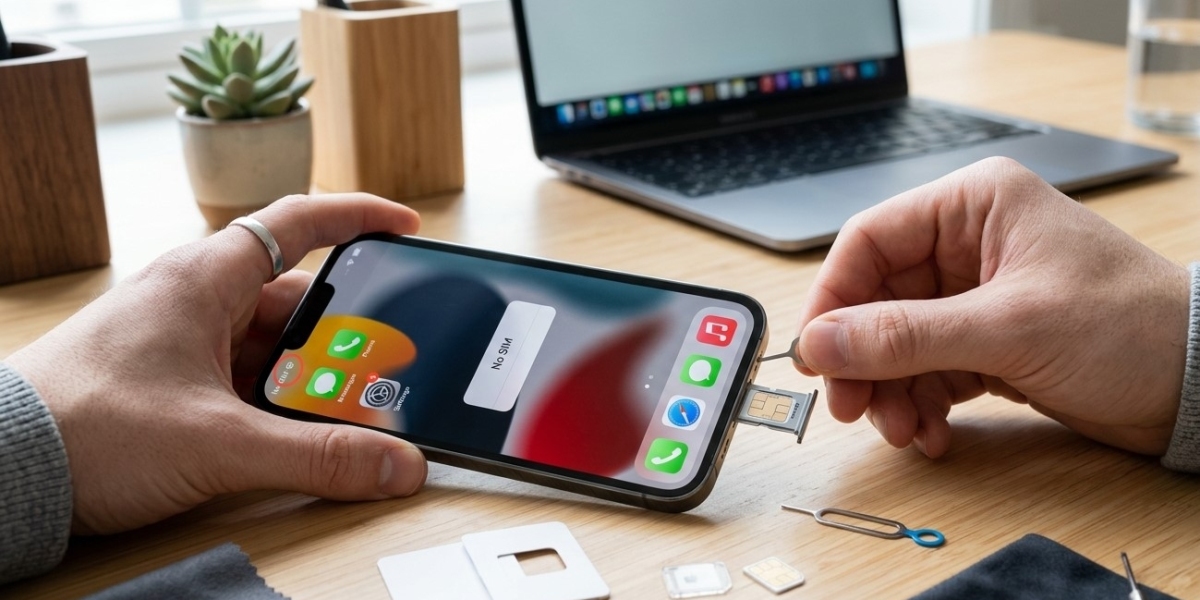

Seeing a “No SIM” message on your iPhone can be frustrating, especially when you need to make calls, send messages, or use cellular data. The problem can appear suddenly even if your SIM card was working normally before. For customers searching for iPhone repair Brooklyn NY, it is helpful to know that a “No SIM” message does not always mean the iPhone needs a major repair. The issue may be caused by a loose SIM card, network settings, software problems, carrier issues, or damage to the SIM card or phone.
At Avenue D Cellular, customers may experience iPhone connectivity problems caused by both software and hardware issues. A SIM-related problem can sometimes be fixed with simple troubleshooting, while persistent errors may require professional diagnosis. Even if you originally visited a repair shop for iPhone screen repair Brooklyn, physical damage from a drop can sometimes affect other components, including cellular connectivity.
Why Does My iPhone Say “No SIM”?
Your iPhone displays “No SIM” when it cannot properly detect or communicate with the SIM card or cellular connection.
Common causes include:
- A SIM card that is not seated correctly
- A damaged or worn SIM card
- Dirt or debris around the SIM tray
- Temporary software problems
- Outdated carrier settings
- Network configuration issues
- Carrier account or network problems
- Physical damage to the iPhone
- Problems with the SIM reader
Before assuming there is a hardware failure, try the following troubleshooting steps.
1. Restart Your iPhone
A simple restart is one of the easiest ways to address temporary cellular problems.
Turn your iPhone off completely, wait a few seconds, and then turn it back on. Once the device starts, give it a moment to reconnect to the cellular network.
Check the top of the screen to see whether your carrier signal has returned.
If the “No SIM” message disappears after restarting but comes back later, the issue may be related to software, network communication, or the SIM card itself.
2. Turn Airplane Mode On and Off
Airplane Mode can temporarily reset your iPhone's wireless connections.
Open Control Center and turn Airplane Mode on. Wait approximately 10–15 seconds, then turn it off again.
Your iPhone will attempt to reconnect to the cellular network.
If the phone recognizes the SIM afterward, the issue may have been caused by a temporary network or communication glitch.
3. Remove and Reinsert the SIM Card
If your iPhone uses a physical SIM card, the card may have shifted slightly inside the tray.
Before removing the SIM, turn off your iPhone if appropriate. Use the SIM-eject tool to carefully open the SIM tray.
Remove the SIM card and inspect it for:
- Scratches
- Cracks
- Dirt
- Bent or damaged areas
- Signs of corrosion
Make sure the SIM card is positioned correctly in the tray before reinserting it.
Do not force the tray into the phone. If it does not slide in smoothly, check its alignment.
4. Check for a Damaged SIM Card
SIM cards can become worn or damaged over time. If your iPhone continues displaying “No SIM,” testing the card in another compatible phone can help identify the source of the problem.
If the SIM does not work in another device, contact your carrier about replacing it.
If the SIM works perfectly in another phone but your iPhone continues showing “No SIM,” the issue may be related to the iPhone rather than the card.
5. Check for Carrier Settings Updates
Carrier settings updates can improve your iPhone's connection to your mobile network.
Go to:
Settings → General → About
Stay on this screen for a few seconds. If a carrier settings update is available, your iPhone may display an option to install it.
After installing the update, check whether the SIM is recognized.
Carrier settings can vary depending on your network provider, so keeping them current can help maintain reliable cellular connectivity.
6. Update Your iPhone
An outdated version of iOS or a software bug may occasionally interfere with cellular functions.
Go to:
Settings → General → Software Update
If an update is available, review the details and install it when appropriate.
After the update finishes, restart your iPhone and check whether the “No SIM” message has disappeared.
Keeping iOS updated can also help improve overall device stability and compatibility with network services.
7. Reset Network Settings
If your SIM is still not recognized, resetting network settings may help resolve corrupted or incorrect network configurations.
Go to:
Settings → General → Transfer or Reset iPhone → Reset → Reset Network Settings
Be aware that this removes saved Wi-Fi networks and passwords, as well as certain network-related settings. You will need to reconnect to Wi-Fi afterward.
Once the reset is complete, check whether your iPhone recognizes the SIM and reconnects to the cellular network.
8. Check Your Carrier Account
Sometimes the problem is not with the iPhone or SIM card at all. Your carrier account may have an issue, or there may be a temporary network outage.
Contact your carrier or check its service status to determine whether there is a known problem in your area.
If your account is inactive, suspended, or experiencing an activation problem, the iPhone may not be able to establish normal cellular service.
9. Check for Physical Damage
If your iPhone recently fell, was exposed to liquid, or suffered other physical damage, the “No SIM” problem may be hardware-related.
A strong impact can potentially affect the SIM tray, SIM reader, internal connections, or other cellular components.
Liquid exposure can also cause corrosion that interferes with internal circuitry.
If the “No SIM” message appeared immediately after physical damage, avoid repeatedly forcing the SIM tray or attempting to open the phone yourself. Professional inspection is safer.
What If Your iPhone Uses an eSIM?
Not every iPhone uses a physical SIM card. Some models and carriers use an eSIM, which is built into the device rather than inserted as a removable card.
If you use an eSIM and see a “No SIM” or similar cellular message, check your cellular settings and contact your carrier if necessary.
You may need to confirm that the cellular plan is active and correctly configured on the device.
Because eSIM issues can involve carrier activation, avoid deleting a cellular plan unless you understand the steps required to reactivate it.
When Should You Get Professional iPhone Repair?
If you have restarted the device, checked the SIM card, updated iOS, reset network settings, and confirmed that your carrier service is working, but the “No SIM” message continues, professional diagnosis may be necessary.
Consider professional service if:
- The SIM works in another phone but not yours
- The SIM tray is damaged
- The iPhone suffered a significant drop
- The device has liquid damage
- Cellular service repeatedly disappears
- Multiple SIM cards produce the same error
- The phone has other hardware problems
A technician can inspect the SIM reader and related internal components to determine whether the problem is hardware-related.
For customers searching for iPhone repair Brooklyn NY, professional diagnosis can help identify the actual cause instead of replacing the SIM card or other parts unnecessarily.
Can Screen Damage Be Related to a “No SIM” Problem?
A cracked screen does not normally cause an iPhone to display “No SIM.” However, if the screen damage occurred during a strong impact, other internal components could potentially have been affected at the same time.
If you are seeking iPhone screen repair Brooklyn and have also noticed cellular problems since the same accident, tell the technician about both issues. A complete inspection can help determine whether the device has additional damage.
How to Prevent SIM and Cellular Problems
Handle your iPhone carefully and avoid exposing it to water or excessive moisture. Keep the SIM tray area clean and avoid removing and reinserting the SIM unnecessarily.
Using a protective case can help reduce the risk of damage from accidental drops. Keeping iOS and carrier settings updated can also help maintain reliable cellular performance.
If your SIM card is old or damaged, replacing it through your carrier may prevent recurring connectivity problems.
Why Choose Avenue D Cellular?
Persistent cellular problems can be difficult to diagnose without examining the device. Avenue D Cellular can assist customers with iPhone connectivity issues, SIM-related problems, screen damage, battery concerns, charging issues, and other common repairs.
Professional diagnosis can help determine whether the problem is caused by the SIM card, carrier service, software configuration, or an internal iPhone component.
Final Thoughts
An iPhone that keeps showing “No SIM” does not necessarily have a serious hardware problem. Start by restarting the device, toggling Airplane Mode, checking the SIM card, looking for carrier settings updates, updating iOS, and resetting network settings if necessary. You should also confirm that your carrier account and network service are functioning normally.
If the SIM works in another phone but your iPhone continues displaying the error, professional inspection may be the best next step. For dependable iPhone repair Brooklyn NY, iPhone screen repair Brooklyn, and other iPhone services, Avenue D Cellular can help diagnose the underlying problem and determine the right solution for your device.