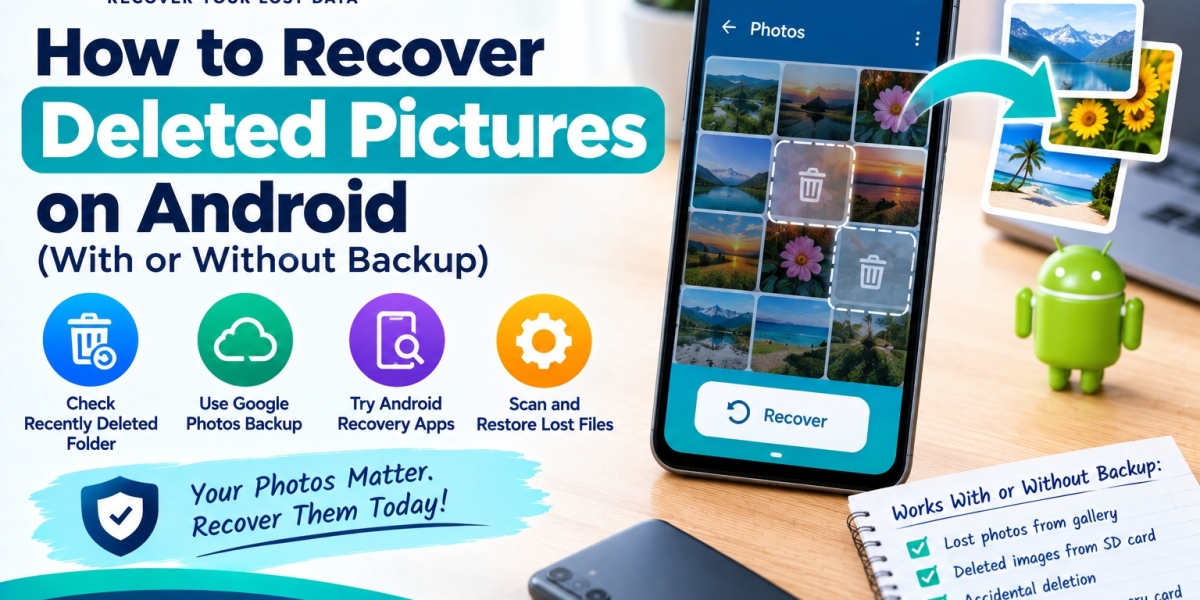

Smartphone cameras have made snapping photos super easy. Just point, tap, and you've got a moment saved. So it's no surprise our gallery apps are overflowing with everything: friends, family, pets, favorite meals, vacations, the whole story of our lives.
Losing those memories to accidental deletion, glitches, or device issues feels downright awful. But there are ways to get them back if you know where to look. There is no need to worry if you have lost certain photos on your Android device, as here, we are going to tell you how to recover deleted pictures on Android without issues.
How can you recover your Photos on Android using Cloud storage?
The first thing that you can do on your Android device is to check your cloud storage app, which is Google Photos. If you’ve got backup turned on, your pictures are probably safe. Google Photos pulls together images from other apps like WhatsApp and Facebook, so even if you delete a photo in one app, it might still be hanging around in your Photos app.
All you need to do is access Google Photos, search the folders, or hit up the Bin (Google keeps deleted, backed-up photos for 60 days, and for ones not backed up, 30 days). Go to the Library tab, tap Bin, and see what's recoverable.
Sometimes, it takes a while for deletions to show up. If you can't find the photo in the app, head to photos.google.com; sometimes the web version has what the phone app doesn’t. Just keep in mind, recovery only works if you had cloud backup switched on. If you haven’t, fix that now: open Google Photos, tap your profile in the corner, hit Phone settings > Backup, and turn backup on.
Pick which folders you want saved. The free 15GB might not be enough if you’ve got lots of high-res photos; switch to Storage saver under Backup quality if space is tight.
Recover Lost or Deleted Photos using an SD Card or Internal Storage
Now, if you didn’t have a backup, stop using your phone immediately. Seriously, put it in Airplane Mode so nothing new gets downloaded or saved. When you delete a photo, Android marks the space as available but doesn’t wipe it right away. If you take more photos or install new apps, the space gets overwritten, and your shot is lost for good.
For photos stored only on your SD card or internal storage, your best bet is using third-party recovery tools. Plenty of apps comb through that “empty” space looking for recoverable files. Your chances improve if you use a recovery app on your computer (Windows or Mac) and plug your Android phone in to recover lost photos Android. That way, you aren’t touching the phone itself and risking overwriting your lost photos.
So, whether you rely on cloud backup or recovery apps, you’ve got options to rescue those memories from disaster. Just act quickly and wisely before you lose these photos for good. Now, you can also refer to the Notchox website to learn other methods that you can use to recover your pics easily.