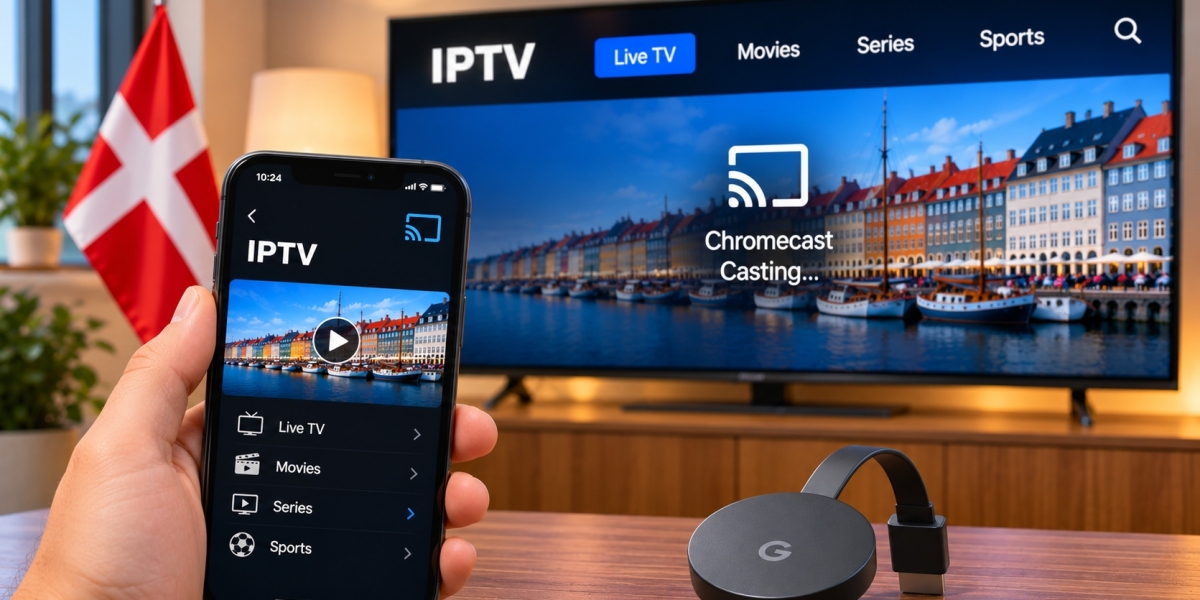

Chromecast can be a practical way to bring internet-based television to a larger screen without replacing an existing TV. For viewers in Denmark, it can also provide a flexible option for using compatible IPTV services through a smartphone, tablet, or supported streaming application.
However, IPTV on Chromecast does not work in exactly the same way as IPTV on a Smart TV or dedicated streaming box. The experience depends on the Chromecast model, IPTV player, casting support, Wi-Fi quality, and the connection method supplied by the IPTV service.
This guide explains how IPTV works with Chromecast, what equipment may be required, and how to improve reliability.
What Is Chromecast?
Chromecast is a streaming technology developed by Google that allows compatible content to be shown on a television.
Depending on the model, Chromecast may work primarily as a casting receiver or as a complete streaming device with its own interface and applications.
This distinction is important when setting up IPTV.
Older Chromecast devices often rely on another device, such as a smartphone, tablet, or computer, to start playback.
Newer Google TV-based devices can run compatible applications directly.
How Does IPTV Work With Chromecast?
IPTV delivers television and video content through an internet connection.
When Chromecast is used, there are generally two possible approaches.
Cast From Another Device
A compatible IPTV application running on a smartphone or tablet may include a Cast button.
The mobile device selects the content, while Chromecast displays it on the television.
Use an App Directly
Some Google TV or Android TV-based Chromecast devices allow compatible IPTV applications to be installed directly.
In this setup, the IPTV player runs on the streaming device itself rather than relying on a phone.
The method available depends on the hardware and application.
Check Which Chromecast Model You Have
Before choosing an IPTV setup, identify the device being used.
Older Chromecast models and Google TV-based devices have different capabilities.
Traditional Chromecast
Traditional Chromecast devices are mainly designed to receive content sent from another compatible device.
They do not provide the same standalone application environment as Android TV or Google TV.
Chromecast With Google TV
Google TV-based models provide an on-screen interface and access to compatible applications.
This can make IPTV setup more similar to using an Android TV streaming box.
Users can navigate applications with a remote rather than relying entirely on a smartphone.
Choose an IPTV Player With Casting Support
Not every IPTV player supports Chromecast.
Before installing an application on an iPhone, iPad, Android phone, or tablet, check its current feature list.
Useful features may include:
Chromecast support
M3U playlist support
Account-based login
EPG support
Favourites
Search
Film and series categories
If casting is the main goal, Chromecast compatibility should be confirmed before paying for a premium version of an app.
Setting Up IPTV Through a Smartphone
The exact steps depend on the application, but the general process is straightforward.
Step 1: Connect Both Devices to the Same Network
The phone or tablet and Chromecast normally need to be connected to the same Wi-Fi network.
If they are connected to different networks, the Cast option may not detect the television.
Step 2: Install a Compatible IPTV Player
Download an IPTV application that supports both your IPTV login method and Chromecast.
Use a recognised app store or trusted source.
Step 3: Add IPTV Access Details
Depending on the service, this may include:
M3U playlist URL
Username
Password
Server address
Portal information
Enter the information exactly as supplied.
Step 4: Select the Chromecast Device
When the Cast icon appears, select the Chromecast connected to the television.
The name of the device should appear in the available device list.
Step 5: Start Playback
Choose a channel or compatible video inside the IPTV application.
The television should begin displaying the stream while the phone or tablet acts as the controller.
Why the Cast Button May Not Appear
Several issues can prevent Chromecast from being detected.
Different Wi-Fi Networks
Check that both devices are connected to the same home network.
Some routers create separate guest networks that prevent connected devices from communicating with one another.
Application Does Not Support Casting
An IPTV application can work perfectly on a phone while still lacking Chromecast support.
Check the player's feature list rather than assuming casting is included.
Chromecast Needs Restarting
Restarting the Chromecast and mobile device can resolve temporary discovery problems.
Router Problems
Local network settings can sometimes prevent connected devices from seeing each other.
Restarting the router may help with temporary connection issues.
Using IPTV Directly on Google TV
If the Chromecast device runs Google TV, users may be able to install an IPTV player directly.
This approach has several advantages.
The smartphone is no longer required for everyday navigation, and the remote can be used to browse channels, categories, films, and programme guides.
A typical setup may involve:
Opening the app store.
Searching for a compatible IPTV player.
Installing the application.
Adding the IPTV account details.
Loading the channel list.
Testing live television and other content.
This can provide a more traditional television experience than casting from a phone.
Check Compatibility Before Choosing a Subscription
Before committing to a longer IPTV subscription, confirm that the service works with the device and player you plan to use.
A service that works on a Smart TV does not automatically guarantee the same setup will work through Chromecast.
Viewers researching IPTV services and device support for the Danish market can include DANMARK IPTV when comparing subscription options, installation guidance, and compatible devices.
Checking compatibility before subscribing can help avoid unnecessary setup problems.
Wi-Fi Quality Is Especially Important
Chromecast depends heavily on the home network.
When casting from another device, both the sending device and Chromecast need reliable network access.
A weak signal can contribute to:
Buffering
Slow channel changes
Delayed playback
Connection drops
Lower video quality
Good Wi-Fi coverage around the television can therefore make a significant difference.
Improve Router Placement
If streaming performance is inconsistent, look at the router location.
A router generally performs better when it is:
In an open area
Centrally positioned
Above floor level
Away from large metal objects
Not hidden inside furniture
The Chromecast may be located behind the television, where the signal can sometimes be weaker.
Moving the router or improving wireless coverage may help.
Consider Ethernet Where Supported
Some Chromecast and Google TV setups can use Ethernet through compatible adapters or accessories.
A wired connection can provide greater consistency for a fixed television setup.
Ethernet can reduce problems caused by:
Weak Wi-Fi
Wireless interference
Distance from the router
Busy wireless networks
A wired connection is not essential for every household, but it can be useful when Wi-Fi remains unreliable.
Internet Speed and Streaming Quality
Streaming quality depends on more than the maximum broadband speed.
Important factors include:
Connection stability
Video resolution
Stream bitrate
Number of active devices
Network congestion
Device performance
A household watching one HD stream may need less bandwidth than a home where several people are streaming video simultaneously.
HD and 4K Streaming
Higher-resolution video usually requires more bandwidth.
A Chromecast device that supports 4K does not guarantee that every IPTV stream will be shown in 4K.
The complete setup needs to support the resolution, including:
IPTV source
Chromecast model
Television
Internet connection
Player
HDMI connection
The original stream is particularly important.
Hardware cannot create genuine 4K detail when the source itself is lower resolution.
How to Reduce Buffering
If IPTV buffers through Chromecast, test the setup systematically.
Restart the Devices
Restart the Chromecast, phone or tablet, and router.
This can resolve temporary network problems.
Test Several Streams
If one channel buffers but others work normally, the issue may be limited to that individual stream.
Reduce Network Activity
Pause large downloads, cloud backups, and other simultaneous video streams temporarily.
This can show whether household network congestion is affecting IPTV.
Move Closer to the Router
If the phone or tablet is sending the stream, make sure it also has a strong Wi-Fi signal.
Try Direct App Playback
If a Google TV-based device supports the IPTV application directly, compare direct playback with casting.
This may help determine whether the casting process itself contributes to the issue.
Chromecast vs Smart TV App
Both approaches have advantages.
Chromecast Can Be Useful When
The television is older
The preferred Smart TV app is unavailable
Mobile control is convenient
A portable streaming solution is wanted
The household already uses Google devices
Smart TV Apps Can Be Useful When
The required IPTV player is available directly
No additional hardware is desired
The television interface performs well
Remote-control navigation is preferred
There is no universal best option.
The most suitable setup depends on the television and how the household prefers to watch content.
Chromecast vs Android TV Box
Google TV-based Chromecast devices and Android TV boxes can provide similar functionality in some cases.
The differences may involve:
Available storage
Network ports
Hardware performance
Remote controls
App support
Price
Software updates
Users should focus on which device supports the required IPTV player and home-network setup rather than choosing based only on brand.
Use Favourites for Easier Navigation
Large IPTV channel lists can be inconvenient when controlled through a remote or mobile interface.
A favourites list can make navigation much quicker.
Consider saving frequently watched:
Danish television channels
Sports channels
News
Entertainment
Children's channels
International channels
Keeping the list short makes the feature more useful.
EPG Support on Chromecast
An electronic programme guide can show current and upcoming television programmes.
Whether the EPG appears depends on the IPTV service and player.
If the guide is empty while channels work correctly, try:
Refreshing EPG data
Restarting the player
Checking timezone settings
Updating the application
Confirming the EPG source
The problem does not necessarily involve Chromecast itself.
Check Danish Time Settings
Incorrect time settings can make programme guide schedules appear early or late.
If the IPTV application runs directly on Google TV, check the device timezone.
If casting from a smartphone, also check the phone or tablet's date and time settings.
Automatic timezone settings can make seasonal clock changes easier to manage.
IPTV on Chromecast and Multiple Devices
A household may also use IPTV on a Smart TV, tablet, smartphone, or another streaming device.
The number of supported devices and the number of simultaneous streams are not necessarily the same thing.
A provider may allow account details to be saved on several devices while restricting how many streams can run at once.
Check the subscription conditions before using the same account simultaneously across several screens.
Keep Login Information Private
Treat IPTV account details like other private credentials.
Avoid publicly sharing:
M3U URLs
Username
Password
Server address
Portal information
A playlist URL may contain account-specific details.
Hide sensitive information when sharing screenshots for technical support.
Keep Apps and Devices Updated
Application and device updates may improve:
Chromecast compatibility
Playback stability
Security
EPG performance
Network handling
Interface responsiveness
Check the appropriate app store and device settings periodically for updates.
Use Trusted IPTV Applications
Avoid installing unknown applications simply because they advertise free IPTV compatibility.
Use recognised application stores and check the developer before entering account information.
Applications should request only permissions that make sense for their function.
Consider Content Licensing
Chromecast and IPTV are both technologies.
Neither determines whether a specific television stream is authorised.
The legal status of content depends on licensing and distribution rights.
Viewers in Denmark should research IPTV providers carefully and consult current Danish rules or reliable legal information when uncertain about a particular service.
Final Thoughts
Chromecast can provide a flexible way to use IPTV on a television in Denmark, particularly when the TV does not already support a suitable application.
Traditional Chromecast devices may rely on casting from a phone or tablet, while Google TV-based models can support compatible IPTV players directly.
Before getting started, confirm the Chromecast model, IPTV login method, application compatibility, and home-network quality.
Strong Wi-Fi, appropriate app support, protected account credentials, and a properly configured IPTV player can make casting live television, films, series, and other content easier to manage on the main television.