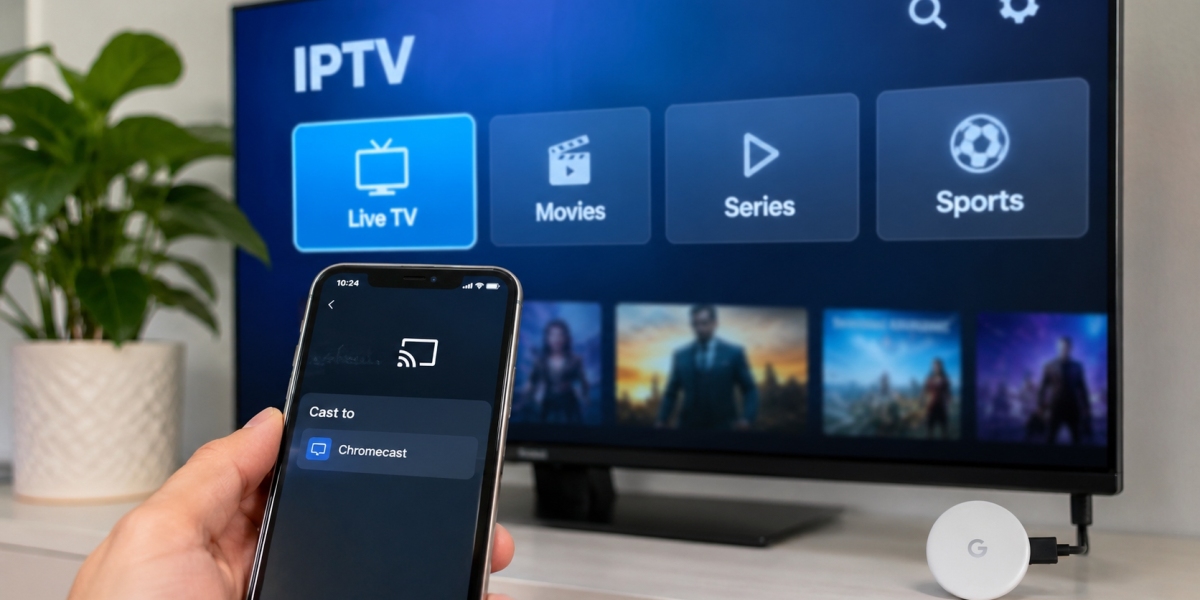

Chromecast can be a convenient way to move IPTV from a phone, tablet, or computer onto a larger television screen. It is especially useful when the television itself does not have the IPTV application you want, but another device in the home already does.
The basic idea is simple. Your phone, tablet, or computer handles the IPTV application, while Chromecast sends the video to the television. In some setups, playback may continue directly through the streaming device after casting begins.
The experience depends on the Chromecast model, IPTV player, home Wi-Fi network, and the way the service is configured.
Understand What Chromecast Actually Does
Chromecast is designed to send or mirror media to a television.
It does not automatically include an IPTV subscription or television channels.
You still need a compatible IPTV service and an application capable of handling the account details supplied to you.
Depending on the setup, Chromecast may receive video through:
A cast-compatible IPTV application
Screen mirroring
Browser casting
Google TV applications on newer Chromecast devices
These methods do not all work in exactly the same way.
Check Which Chromecast You Have
There have been several generations of Chromecast.
Older Chromecast devices mainly rely on another device, such as a phone or computer, to start playback.
Chromecast models with Google TV work more like complete streaming devices. They include their own interface, remote control, and support for compatible applications installed directly on the device.
This difference matters when choosing the easiest IPTV setup.
With Google TV, you may be able to install a compatible IPTV player directly rather than casting from a phone every time.
Casting From a Phone or Tablet
For many users, the simplest setup starts with a mobile device.
Open the IPTV application and look for the familiar cast symbol. If the player supports Chromecast directly, selecting that icon should display available compatible devices on the same network.
Choose the television or Chromecast you want to use.
Once connected, start the channel or other content.
The phone may then act as a remote, allowing you to pause playback, change content, or disconnect the cast session.
Not Every IPTV App Supports Casting
This is an important detail.
Two IPTV applications on the same phone may behave very differently with Chromecast.
One may include native casting support, while another may not display the cast button at all.
If Chromecast is important to you, check this feature before spending too much time configuring an application.
Native casting is usually more convenient than mirroring the entire phone screen.
Screen Mirroring Is Different
Screen mirroring sends what appears on your phone or computer screen to the television.
It can be useful when an application does not provide native casting, but it may not be the best solution for every situation.
Mirroring can place more work on the source device and may introduce:
Additional delay
Reduced smoothness
Different video quality
Battery drain
Notifications appearing on the television
If a proper cast option is available, it is usually worth trying that first.
Keep Both Devices on the Same Network
One of the most common reasons a Chromecast does not appear in an application is simple: the devices are not connected to the same local network.
For example, the Chromecast might be using the home Wi-Fi while the phone is connected through mobile data or a separate guest network.
In that situation, the phone may not discover the Chromecast.
Check that both devices are connected to the same home network before changing application settings.
Wi-Fi Quality Matters More When Casting
Casting involves several devices communicating through the network.
A weak wireless connection can therefore become noticeable quickly.
Imagine a Chromecast installed behind a television at one end of the house while the router sits several rooms away. The phone might show an acceptable signal, but the Chromecast itself may have a weaker connection.
If playback buffers frequently, test the internet connection near the television rather than only beside the router.
Router Placement Can Affect the Experience
A router hidden in a cabinet might fit the room nicely, but it is not always ideal for wireless performance.
Wi-Fi signals can be affected by:
Thick walls
Large furniture
Distance
Other wireless networks
Electronic devices
Building materials
Moving the router to a more open position can sometimes improve streaming without changing the internet plan.
For larger homes, additional access points or a mesh Wi-Fi system may be worth considering when weak coverage affects several devices.
Chromecast With Google TV Offers Another Approach
Chromecast with Google TV behaves more like a traditional streaming box than older Chromecast devices.
Instead of starting every stream from a phone, compatible applications can be installed directly on the Google TV interface.
This makes IPTV use closer to the experience offered by Android TV devices.
A suitable IPTV player may provide:
Live television categories
Movies and series sections
Favourite channels
Search
EPG support
Remote-control navigation
For users who watch IPTV regularly, this can be more convenient than casting every session manually.
Choose the Player Before Spending Time on Setup
Different IPTV services may provide different types of login information.
You might receive a playlist link, username and password, or other account details.
Before installing an application, confirm that it supports the method supplied by your service.
Viewers comparing IPTV subscriptions, device options, and setup information for Sweden can also review First Class IPTV when researching suitable IPTV configurations.
Checking compatibility first is much easier than configuring an application only to discover that it cannot use your account format.
Favourites Are Particularly Useful on a TV
Casting from a phone can make a large channel list feel even more cumbersome.
Creating a favourites list before starting a cast session can save time.
Instead of scrolling through multiple categories while everyone waits for something to appear on the television, you can keep frequently watched channels in one short section.
This is a small organizational step that makes a noticeable difference in everyday use.
Program Guides Can Help Too
An Electronic Program Guide, or EPG, shows current and upcoming television programs when supported by the IPTV service and application.
It can be helpful when deciding what to cast because you can check the schedule on the phone or tablet before sending the stream to the television.
If the guide disappears while channels still work, look for an EPG refresh option.
Channel data and program information are sometimes updated separately.
What if the Chromecast Does Not Appear?
If the cast button is visible but your Chromecast is missing from the device list, start with the basics.
Check that the television and Chromecast are powered on.
Then confirm that the source device and Chromecast are using the same Wi-Fi network.
If that looks correct, restart the IPTV application.
You can also restart the Chromecast and router if necessary.
There is usually little benefit in immediately reinstalling everything before trying these simpler checks.
What if the Video Casts but Keeps Buffering?
First determine whether the problem affects all streaming applications.
Try casting another video service from the same device.
If other applications also buffer, the home network becomes a more likely cause.
If they work normally, test several IPTV channels.
One problematic channel does not necessarily indicate a Chromecast or network issue.
Testing different content helps narrow down where the problem is occurring.
Do Not Forget About Household Bandwidth
A Chromecast may be only one of many devices using the internet connection.
At the same time, someone could be:
Downloading a large game
Joining a video meeting
Streaming another movie
Uploading cloud backups
Updating several devices
These activities can affect the available bandwidth.
If playback problems appear mainly during busy periods at home, temporarily pause large downloads and test again.
That is more informative than randomly changing Chromecast settings.
Mobile Devices Need Battery Too
When casting from a phone or tablet, keep battery use in mind.
Some casting methods require less ongoing work from the source device than screen mirroring, but a long viewing session can still consume battery.
If the phone is already low on power, charging it before starting a long film or sports event can prevent interruptions later.
This is particularly relevant when using screen mirroring, where the phone remains actively involved in displaying the content.
Notifications Can Be Awkward During Mirroring
Screen mirroring reproduces much more of what happens on the source device.
A private message or notification can appear on the television while other people are watching.
Native casting generally avoids this problem because only the media is sent to the TV.
If mirroring is necessary, enabling a suitable focus or do-not-disturb mode can help keep personal notifications off the television screen.
Computer Casting Is Another Option
Chromecast is not limited to smartphones.
A compatible browser on a computer can also send certain content or browser tabs to the television.
This can be useful when the IPTV setup already works well on a laptop.
However, browser casting and full desktop mirroring may behave differently from native app casting.
If video performance is poor through one method, try another compatible approach before assuming the Chromecast itself is faulty.
Keep Chromecast and Apps Updated
Streaming devices and applications receive updates over time.
These updates may improve compatibility, security, and general stability.
If a casting feature that previously worked suddenly behaves differently, check whether:
The IPTV app has an update
The phone or tablet has an operating-system update
Chromecast has restarted recently
Google Home or related software is current
A small compatibility issue can sometimes appear when one part of the setup has updated while another has not.
Chromecast or Dedicated Streaming Box?
Chromecast works well for users who already have a phone or tablet nearby and prefer a lightweight setup.
A dedicated streaming box may be more comfortable for people who watch IPTV every day and want to control everything with a television remote.
Neither solution is automatically better.
Chromecast makes sense when occasional casting is convenient.
A standalone Android TV or Google TV device may make more sense when the television is used as the primary IPTV screen.
Keep the Setup Simple
It is easy to make streaming unnecessarily complicated.
For most households, a dependable setup needs only:
A compatible IPTV player
Correct account information
A stable internet connection
Chromecast and the source device on the same network
A straightforward way to choose channels
Once those basics work, additional features can be added if they genuinely improve the experience.
Final Thoughts
Chromecast provides a flexible way to watch IPTV on a larger screen without relying entirely on the television's built-in applications.
The best method depends on the Chromecast model and the IPTV player being used. Native casting is often the simplest option, while Chromecast with Google TV can provide a more traditional app-based television experience.
If problems occur, start with the network, device connection, and application compatibility before making major changes.
A stable Wi-Fi connection, suitable IPTV player, and simple channel organization are usually more important than complicated settings. With those basics in place, Chromecast can provide an easy way to move IPTV from a smaller screen to the television.