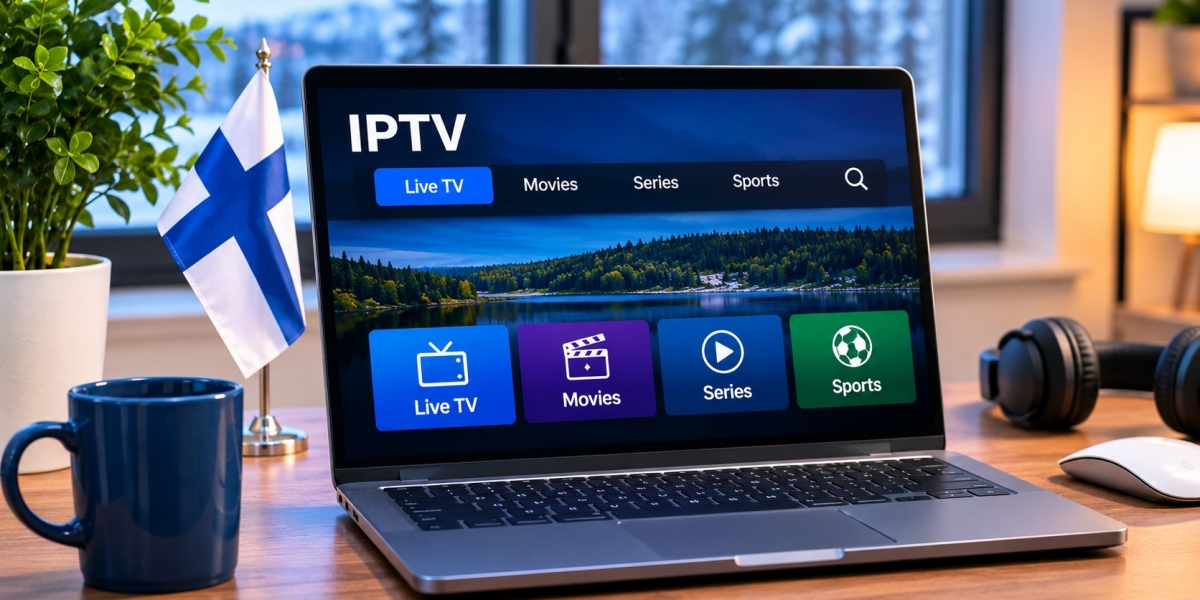

Watching IPTV on a computer can be surprisingly convenient. A laptop or desktop gives you a larger screen than a phone, easier access to settings, and the ability to type playlist URLs or login details without struggling with a television remote.
For viewers in Finland, a PC or Mac can work well as either a main IPTV device or a backup option when a Smart TV or streaming box is unavailable. Computers are also useful for troubleshooting because they make it easier to test playlists, internet performance, and different IPTV players.
The experience still depends on the application, internet connection, device performance, and the access method provided by the IPTV service.
Why Use IPTV on a Computer?
Most people think of IPTV as something watched on a television, but computers have several practical advantages.
A Windows PC or Mac can be useful when you want to:
Watch television while working at a desk
Use a laptop while travelling
Test IPTV login details
Manage playlists more easily
Connect the computer to a larger monitor
Troubleshoot problems affecting another device
Entering long URLs is also much easier with a physical keyboard.
For users who regularly change playlists or settings, this alone can make computer-based IPTV more convenient.
Choosing the Right IPTV Player
The player is the software used to organize and display IPTV streams.
Different applications support different features, so there is no single player that suits everyone.
A useful desktop IPTV player should ideally provide straightforward access to:
Live channels
Channel groups
Search
Favorites
Electronic Programme Guide data
Audio tracks
Subtitles
Playlist management
The interface does not need to be complicated. For everyday viewing, quick navigation is often more valuable than dozens of advanced settings.
M3U Playlists on Windows and Mac
M3U is one of the most common playlist formats used with IPTV.
A service may provide an M3U URL that can be added to a compatible player.
Using M3U on a computer is relatively simple because the address can usually be copied and pasted rather than typed manually.
After adding the playlist, the application may organize available streams into categories.
How well this works depends on the IPTV player and the information contained in the playlist.
Username and Password Login
Some IPTV applications support a login method based on separate credentials.
Users may receive:
A server address
Username
Password
This can be convenient because it avoids handling a very long playlist URL.
When the app supports the login format correctly, available channels and other content may load automatically.
Always follow the setup information provided by the IPTV service rather than trying to convert credentials without a reason.
IPTV on Windows
Windows users have access to several types of media and IPTV applications.
Some are designed specifically for IPTV, while others are general media players that can open compatible network streams or M3U playlists.
When choosing software, check whether it supports the features you actually need.
For example, someone who mainly watches a few live channels may need only simple playlist support.
A user who watches live television every day may prefer an application with:
A full EPG
Favorites
Search
Channel categories
Multiple playlist support
The best choice depends on how the computer will be used.
IPTV on Mac
Mac users can also use compatible IPTV and media applications.
The important consideration is whether the software supports the version of macOS installed on the computer.
Before installing an application, check that it is actively maintained and available from a source you trust.
A player that has not received updates for a long time may eventually develop compatibility problems after macOS changes.
A Laptop Can Be Useful While Travelling
One advantage of watching IPTV on a laptop is portability.
You can take the same device between home, work, hotels, or other locations.
However, streaming quality away from home depends on the network available at the destination.
Hotel and public Wi-Fi can have:
Slower speeds
Congestion
Login portals
Connection limits
Weak signals
For longer viewing sessions, a stable private connection is usually preferable.
Users should also check whether their IPTV service has any location or usage restrictions before travelling.
Use an External Monitor for a Bigger Screen
A laptop does not have to remain a small-screen IPTV device.
Most modern computers can connect to an external monitor or compatible television.
Depending on the hardware, this may be possible through:
HDMI
USB-C
DisplayPort
Compatible adapters
This allows the computer to handle the IPTV application while the video appears on a larger screen.
It can be a useful option when a television does not support the IPTV player you want to use.
Check Display Resolution
Computer displays come in many resolutions.
A high-resolution monitor can provide a sharp picture, but the stream itself also needs to support suitable video quality.
Increasing the display resolution does not improve a low-resolution source.
Likewise, choosing the highest available video quality is not always sensible if the network cannot handle it reliably.
A stable HD or Full HD stream may provide a better experience than a higher-resolution stream that pauses frequently.
Internet Stability Still Matters
A powerful computer cannot compensate for an unstable internet connection.
If IPTV buffers on a PC or Mac, check the network before assuming the player is responsible.
Start with a basic speed test.
Then consider:
Wi-Fi strength
Distance from the router
Other devices using the network
Background downloads
Cloud synchronization
Software updates
Computers often perform several network tasks in the background, which can affect streaming without being immediately obvious.
Background Downloads Can Cause Problems
Windows and macOS may download updates automatically.
Cloud services can also upload or synchronize files while IPTV is playing.
Examples include:
System updates
Cloud photo backups
File synchronization
Game downloads
Browser downloads
If streaming suddenly becomes unstable, check whether another process is consuming bandwidth.
Pausing a large download can sometimes solve the problem immediately.
Ethernet Can Be Helpful
Desktop computers often include Ethernet ports, while many laptops can use Ethernet through an adapter.
A wired connection can provide greater consistency than Wi-Fi, particularly in busy homes.
Ethernet is worth testing if:
IPTV frequently buffers
The computer is near the router
Wi-Fi performance changes throughout the day
Several wireless devices are connected
If IPTV becomes stable over Ethernet, the wireless network is likely contributing to the problem.
Use Wi-Fi Carefully
Wi-Fi can still work perfectly well for IPTV when the signal is strong.
If the computer is close to the router, a 5 GHz network may provide good performance.
At longer distances, 2.4 GHz may sometimes maintain a stronger signal.
The best option depends on the layout of the home.
Testing both bands is usually more useful than assuming one is always better.
Electronic Programme Guide Support
For live TV viewers, an Electronic Programme Guide can make desktop IPTV much easier to navigate.
A properly configured EPG may show:
Current programmes
Upcoming shows
Starting times
Programme descriptions
Channel schedules
Some desktop applications display the guide in a grid, while others use a list.
A wider computer screen can make grid-style EPG layouts particularly convenient.
Search Is Especially Useful on a Computer
Large channel lists can be difficult to browse manually.
One advantage of a computer is the keyboard.
Instead of scrolling through many categories, users can often search directly for a channel, programme, movie, or series.
This can make desktop IPTV considerably faster to navigate than some television interfaces.
Create a Favorites List
Even with good search, saving favorite channels is worthwhile.
A Finnish viewer might create a smaller list containing:
Finnish channels
Nordic channels
Sports
News
Movies
International programming
This keeps everyday navigation simple and avoids repeatedly searching through the entire playlist.
Subtitles and Audio Tracks
Computers can also provide flexible subtitle and audio controls.
When the stream includes multiple tracks, a compatible IPTV player may allow viewers to choose between Finnish, Swedish, English, or other available languages.
Some players also allow adjustments such as:
Subtitle size
Subtitle timing
Audio language
Text position
The exact options depend on both the stream and application.
An IPTV player cannot display subtitle or audio tracks that are not present in the source.
Full-Screen and Windowed Viewing
Desktop IPTV does not need to take over the entire screen.
Windowed viewing can be useful when watching television while doing something else on the computer.
Full-screen mode is better when the computer is being used mainly as an entertainment device.
Some users may also prefer picture-in-picture features when supported by the application or operating system.
Avoid Installing Too Many Players
Testing two or three applications can be useful when choosing a player.
Keeping many unnecessary IPTV applications installed usually creates more clutter than value.
Once you find a player that works reliably, keeping the setup simple makes troubleshooting easier.
If playback later develops a problem, you will know which application and settings are normally used.
Troubleshooting IPTV on a Computer
If IPTV stops working, change one thing at a time.
First, test another channel.
If that does not work, check another internet-based video service.
Then verify the internet connection and restart the IPTV player.
If necessary, restart the computer and router.
Also check whether:
Login details are correct
The account is active
The application is updated
The playlist has loaded correctly
Security software is interfering with the application
This systematic approach is more useful than immediately reinstalling everything.
Keep the Operating System Updated
Windows and macOS receive regular updates.
Keeping the operating system reasonably current can improve security and application compatibility.
The IPTV player should also be updated.
However, if an application stops working immediately after a major system update, check whether the developer has released a compatible version.
Be Careful With Unknown Software
Computers make it easy to download programs from almost anywhere on the internet.
That convenience also creates risk.
Whenever possible, use IPTV applications from official stores, established developers, or other sources you trust.
Avoid downloading modified programs from unfamiliar websites simply because they promise additional features.
A streaming application can potentially access network connections and account information, so software choice matters.
Protect Your IPTV Credentials
Treat IPTV login details as private account information.
Do not publicly share:
M3U playlist URLs
Usernames
Passwords
Account details
Private server information
If you need technical help, describe the problem without posting the complete credentials.
Check Computer Support Before Choosing a Service
A service may work well on Smart TVs but provide different setup options for computers.
If you plan to watch regularly on Windows or macOS, check device support before subscribing.
Viewers researching IPTV setup options for Finland can review Nordic One IPTV when comparing device compatibility, installation methods, and viewing options for computers alongside Smart TVs and other streaming devices.
Choosing a service that clearly supports the devices you already use can make installation much simpler.
Remember That IPTV and Content Rights Are Separate Issues
IPTV describes a method of delivering video through an internet connection.
It does not automatically indicate whether every stream is authorized for distribution.
When comparing services, users should consider both technical compatibility and whether the content is offered with appropriate rights for their location.
This is particularly important when evaluating unfamiliar providers.
PC or Mac vs Smart TV
A computer and Smart TV each have advantages.
A Computer Can Be Better When You Want
Easier typing
Playlist management
Quick troubleshooting
Flexible window sizes
Travel use
Multiple applications
A Smart TV Can Be Better When You Want
Sofa-friendly viewing
Simple remote control navigation
A large permanent screen
Fewer cables around the television
Many households may find both useful for different situations.
Final Thoughts
A Windows PC or Mac can be a practical IPTV device, especially for users who value easy playlist management, keyboard search, flexible screen options, and straightforward troubleshooting.
The most important steps are choosing a compatible IPTV player, using the login method supplied by the service, keeping the internet connection stable, and protecting account credentials.
For viewers in Finland, a computer can work particularly well as a secondary IPTV screen or as a flexible option for travel and home-office viewing.
Keeping the setup simple usually produces the best results. Use one reliable player, organize favorite channels, keep software updated, and troubleshoot the network separately from the application when problems appear.