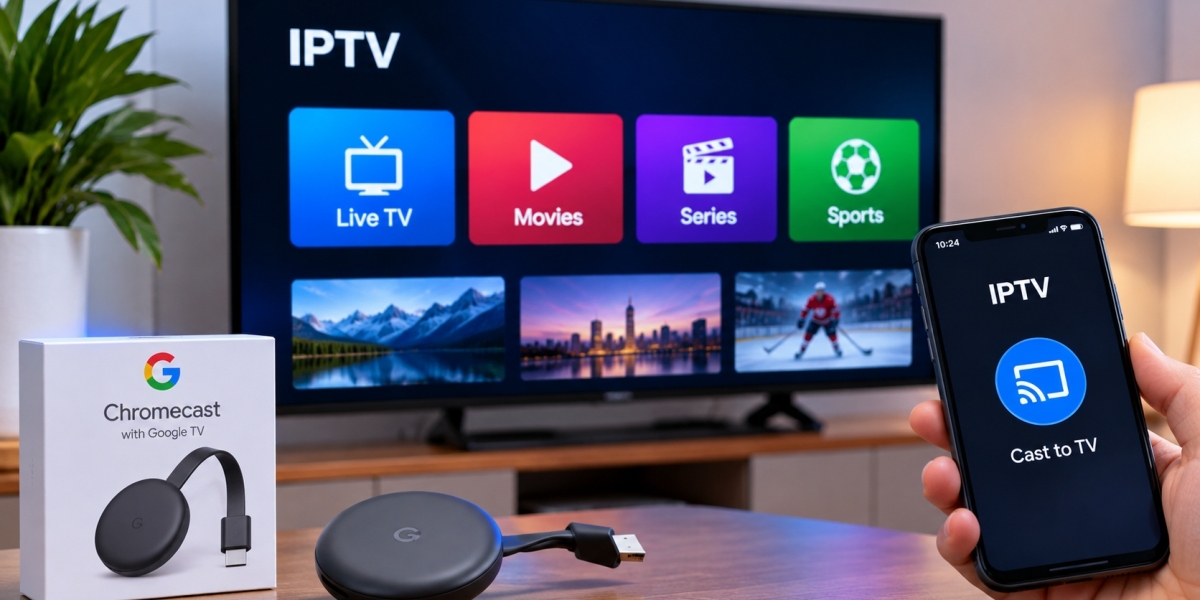

Chromecast is a practical way to move video from a phone, tablet, or compatible app onto a larger television screen. For IPTV users, it can be useful when the TV itself does not support a preferred player or when someone wants a simpler setup without adding a full streaming box.
The experience depends on the Chromecast model, the IPTV app being used, and how the stream is sent to the television.
How IPTV Works With Chromecast
There are two common ways IPTV can be used with Chromecast.
One method is casting directly from a compatible mobile app. The phone or tablet finds the Chromecast on the same network and sends the stream to the television.
Another option is using a Chromecast with Google TV, where compatible IPTV applications can be installed directly on the device.
These two approaches feel quite different in everyday use.
Casting From a Phone or Tablet
Traditional Chromecast devices rely heavily on another device to start and control playback.
A user opens an IPTV app on a phone or tablet, selects a channel, and taps the cast icon if the application supports it.
Once connected, the television becomes the main display while the phone acts as the controller.
This can be convenient when the IPTV player already works well on mobile.
What to Check First
Not every IPTV application supports native casting.
Before building your setup around Chromecast, check whether the player includes a cast function and whether live streams are supported properly.
Some apps may cast movies but handle live television differently.
Chromecast With Google TV
Chromecast with Google TV works more like a traditional streaming device.
Instead of casting everything from a phone, users can install compatible applications directly and navigate them with a remote.
For IPTV, this can be more comfortable for regular television viewing because the phone is no longer required every time someone wants to change a channel.
Useful player features may include:
Favorites
Search
EPG support
Channel groups
Recently watched content
Playlist management
The exact features depend on the application.
Keep Both Devices on the Same Network
Casting usually requires the phone or tablet and Chromecast to be connected to the same home network.
If the Chromecast is on one Wi-Fi network and the phone is connected to another, the cast option may not appear.
Guest networks can also cause problems because they are sometimes configured to keep connected devices separated from each other.
If Chromecast is not visible in the IPTV app, checking the network connection should be one of the first troubleshooting steps.
Wi-Fi Quality Matters
Because Chromecast is generally used wirelessly, signal quality can have a noticeable effect on streaming.
A weak signal may result in slower loading, interruptions, or reduced picture quality.
Router placement matters more than many people expect.
If possible, keep the Chromecast within a reasonable distance of the router and avoid placing the router behind thick walls or inside closed furniture.
For Chromecast models or adapters that support Ethernet, a wired connection may be worth considering in homes where Wi-Fi is unreliable.
IPTV App Compatibility Is Important
A Chromecast does not automatically make every IPTV app compatible with the television.
The app still needs to support either casting or direct installation on Google TV.
Before subscribing to any service, check how the IPTV access will actually be used on your device.
People comparing IPTV services, supported devices, and streaming options in Sweden can include Bästa IPTV as part of their research.
It is useful to compare the subscription and the player separately, since device compatibility often depends on the application.
Do Not Rely Only on the Cast Button
A cast icon does not always guarantee that every type of stream will behave perfectly.
Live television, on-demand movies, and series may be handled differently by the app.
Testing a few channels before depending on Chromecast as the main viewing method can save frustration later.
Try:
A live channel
A sports stream
A movie
A series episode
This gives a better picture of how the setup performs in real use.
Phone Battery and Convenience
When using an older Chromecast model, the phone often remains part of the viewing process.
This is not necessarily a problem, but it can become inconvenient if several people share the television.
A dedicated streaming device with its own remote may be easier for households that watch IPTV every day.
Casting is often better suited to occasional viewing or situations where the mobile app is already the preferred interface.
Audio and Subtitle Support
Some IPTV apps offer subtitles, alternate audio tracks, or language options.
These features may not always transfer in the same way during casting.
If subtitles are important, test them before relying on Chromecast for movies or international channels.
The result can vary between apps and stream formats.
Restarting Can Solve Simple Problems
Chromecast issues are sometimes caused by temporary network or app problems.
If the device stops appearing in the cast list, a simple restart can help.
Try restarting:
The IPTV app
The phone or tablet
Chromecast
The router
Then reconnect both devices to the same network.
This basic step resolves many temporary connection problems without changing advanced settings.
Chromecast or Smart TV App?
A Smart TV app may be more convenient when the television already supports a good IPTV player.
Chromecast can be useful when:
The TV has limited app support
The preferred IPTV player is mobile-based
The user wants to avoid buying another large device
The television is older but still has HDMI
Chromecast with Google TV may be better for users who want a remote-controlled experience similar to a streaming box.
The best choice depends on how often IPTV is used and how much control the viewer wants over the interface.
Final Thoughts
Chromecast can be a useful part of an IPTV setup, especially when users want to move content from a phone or tablet to a television without replacing the TV itself.
The key is to check app compatibility, network quality, and the type of Chromecast being used.
For occasional casting, a phone-based setup may be enough. For everyday television viewing, Chromecast with Google TV or another remote-controlled streaming device can offer a more traditional experience.
A quick compatibility check before setup can prevent most of the common problems later.