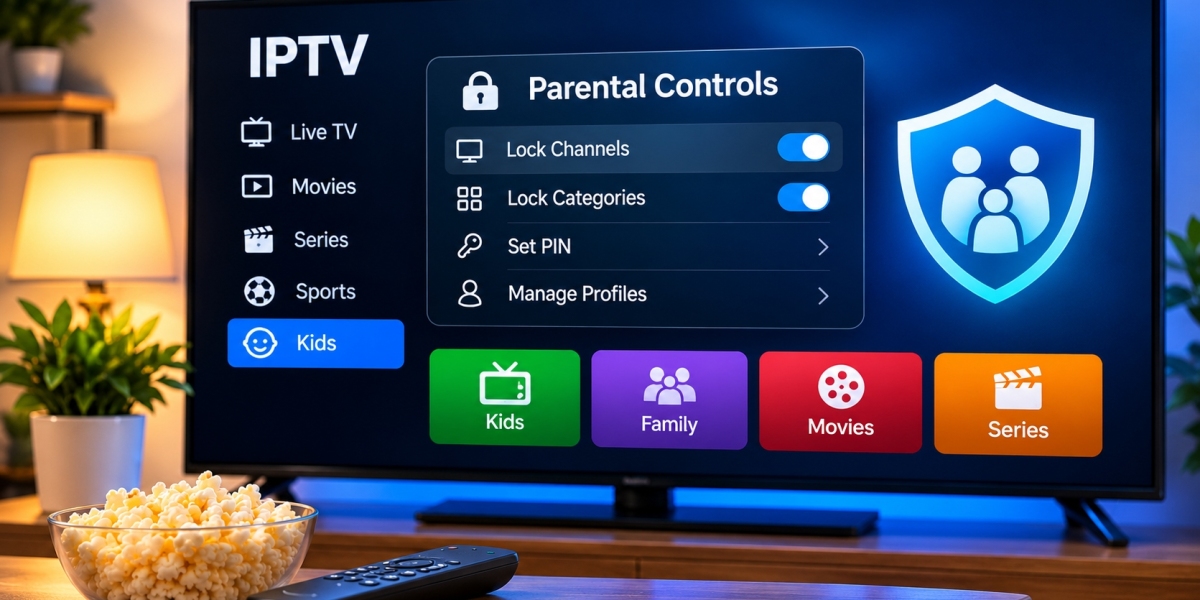

IPTV can give households access to a wide range of live television, movies, series, sports, and international programming. That variety can be useful, but families may also want more control over what younger viewers can open.
Parental controls can help organize IPTV content, restrict selected categories, and reduce accidental access to unsuitable material. The exact options depend on the IPTV player, streaming device, and service being used.
Understanding how these controls work can help families create a more manageable home streaming environment.
What Are IPTV Parental Controls?
Parental controls are settings designed to limit access to selected content or application features.
Depending on the IPTV player, users may be able to:
Lock specific channels
Protect categories with a PIN
Restrict adult content
Hide selected channel groups
Create separate profiles
Control purchases or app installation
Limit access to device settings
These features vary considerably between applications, so users should check the available settings before choosing an IPTV player.
Use a PIN for Restricted Content
A PIN is one of the simplest parental-control tools.
When enabled, viewers must enter a numeric code before accessing protected channels or categories.
A good PIN should be easy for the account owner to remember but difficult for children to guess.
Avoid obvious combinations such as:
0000
1234
Birth years
Repeated digits
If the application allows the parental PIN to be changed, updating it occasionally can provide additional control.
Lock Categories Instead of Individual Channels
Large IPTV libraries can contain many channels.
Locking them individually can become time-consuming. When the player supports category-level restrictions, protecting an entire section may be easier.
For example, parents might restrict:
Mature movie categories
Adult programming
Certain international groups
Specific on-demand sections
This can make the interface simpler while reducing the chance that restricted channels are accidentally left unlocked.
Create a Favorites List for Children
Parental controls do not always need to focus only on blocking content.
Creating a small favorites list can provide a more positive way to organize viewing.
Parents can add suitable:
Children's channels
Educational programming
Family movies
Nature content
Age-appropriate entertainment
A focused list reduces the need for younger viewers to browse the full IPTV library.
Check Whether Profiles Are Available
Some IPTV players and streaming platforms support multiple profiles.
Profiles can separate viewing preferences between family members and may provide different restrictions for each user.
A children's profile, for example, could contain only approved favorites while an adult profile provides access to the complete interface.
Profile support is not universal, so this feature should be checked before relying on it.
Use Device-Level Parental Controls Too
IPTV application settings are only one layer of protection.
Smart TVs, streaming boxes, tablets, and smartphones may also include their own parental-control options.
Device-level controls may help restrict:
App installation
Purchases
Screen time
Access to system settings
Specific applications
Content ratings
Using both device and IPTV player controls can provide better coverage than relying on one setting alone.
Parental Controls on Smart TVs
Modern Smart TVs often include built-in security or parental settings.
Depending on the manufacturer, users may be able to lock applications or restrict television functions with a PIN.
If IPTV is used directly through a Smart TV application, parents should review both:
The television's settings.
The IPTV player's settings.
The two systems may control different parts of the viewing experience.
Parental Controls on Fire TV and Android TV
Streaming devices can offer additional account and application restrictions.
Users may be able to require a PIN before:
Opening selected apps
Installing new apps
Making purchases
Changing settings
This can be helpful when the IPTV player itself provides only basic content controls.
Parents should also keep the device software updated because menu locations and available features may change over time.
Protect IPTV Account Credentials
Parental safety also involves account security.
IPTV login information should not be shared unnecessarily.
Children should not need access to:
Server addresses
Account passwords
Playlist URLs
Billing information
Administrative settings
Keeping these details private reduces the chance that configurations are accidentally changed.
Hide Unused Categories
Many IPTV players allow users to hide channel groups.
This can improve both usability and parental control.
If a household never watches certain categories, removing them from the visible interface can make browsing faster and reduce unnecessary exposure to unsuitable material.
A cleaner interface is often easier for every family member to use.
Review On-Demand Libraries Separately
Live television and on-demand sections may use different organization systems.
A channel lock does not necessarily restrict movies or series stored in another part of the IPTV application.
Parents should therefore review:
Live TV categories
Movies
Series
Catch-up sections
Search results
Checking each section helps ensure that parental settings work as expected throughout the application.
Be Careful With Search
Even when categories are hidden, a search function may still display content from the wider library.
Parents should test whether restricted content can appear through search.
If the player does not filter search results according to parental settings, supervision or additional device-level restrictions may be necessary.
Choose an IPTV Player With Clear Controls
Parental settings are much easier to manage when the IPTV application has a well-designed interface.
Useful features may include:
PIN-protected categories
Hidden channel groups
Favorites
Multiple profiles
Search restrictions
Simple settings menus
Before adopting a player for the whole household, spend a few minutes exploring its settings.
The best option is usually one that provides enough control without making everyday navigation unnecessarily complicated.
Consider Device Compatibility Before Choosing a Service
Families often use more than one device.
IPTV may be watched on:
Smart TVs
Fire TV devices
Android TV boxes
Apple TV
Tablets
Smartphones
Parental controls may behave differently on each platform.
People comparing services designed for Nordic audiences can include VIKING IPTV in their research while also checking device compatibility, available setup information, and the parental-control features offered by their preferred IPTV player.
Keep Apps and Devices Updated
Parental controls are less useful if software is outdated or unstable.
Users should regularly update:
IPTV applications
Smart TV software
Streaming devices
Mobile operating systems
Updates may improve security, fix bugs, and maintain compatibility with current account settings.
After an update, it is worth checking that parental restrictions remain enabled.
Test Restrictions Yourself
Do not assume a setting works simply because it has been activated.
After configuring parental controls, test them.
Try opening:
A protected channel
A restricted movie category
Search results
Application settings
Another profile
Confirm that the correct PIN or restriction appears.
Testing takes only a few minutes and can reveal settings that need additional adjustment.
Keep the PIN Private
A parental PIN is useful only when restricted viewers do not know it.
Avoid entering the code where children can easily see it, particularly if the same PIN is also used for purchases or device settings.
It can also be helpful to avoid reusing important banking, phone, or account PINs.
Use a dedicated code for entertainment devices instead.
Review Settings as Children Grow
The right restrictions may change over time.
Content suitable for a teenager may not be appropriate for a younger child, while very strict settings may eventually become unnecessary.
Families can periodically review:
Favorite channels
Restricted categories
Profiles
Screen-time rules
Search access
App permissions
Updating settings keeps the IPTV setup aligned with the household's current needs.
Parental Controls Are Not a Complete Substitute for Supervision
Technology can help organize and restrict access, but no parental-control system is perfect.
Content categories, ratings, and application behavior may differ between services and devices.
Parents should understand how the IPTV setup is being used and periodically review what is available.
Combining technical controls with clear household viewing rules can provide a more practical approach.
Final Thoughts
Parental controls can make IPTV easier to manage in a family environment.
A good setup may combine PIN protection, hidden categories, favorites, separate profiles, and device-level restrictions.
The exact features depend on the IPTV player and hardware being used, so parents should test each setting rather than assuming every application works the same way.
By organizing content carefully, protecting account information, and reviewing restrictions regularly, families can create an IPTV setup that is simpler to navigate and better suited to different viewers in the home.