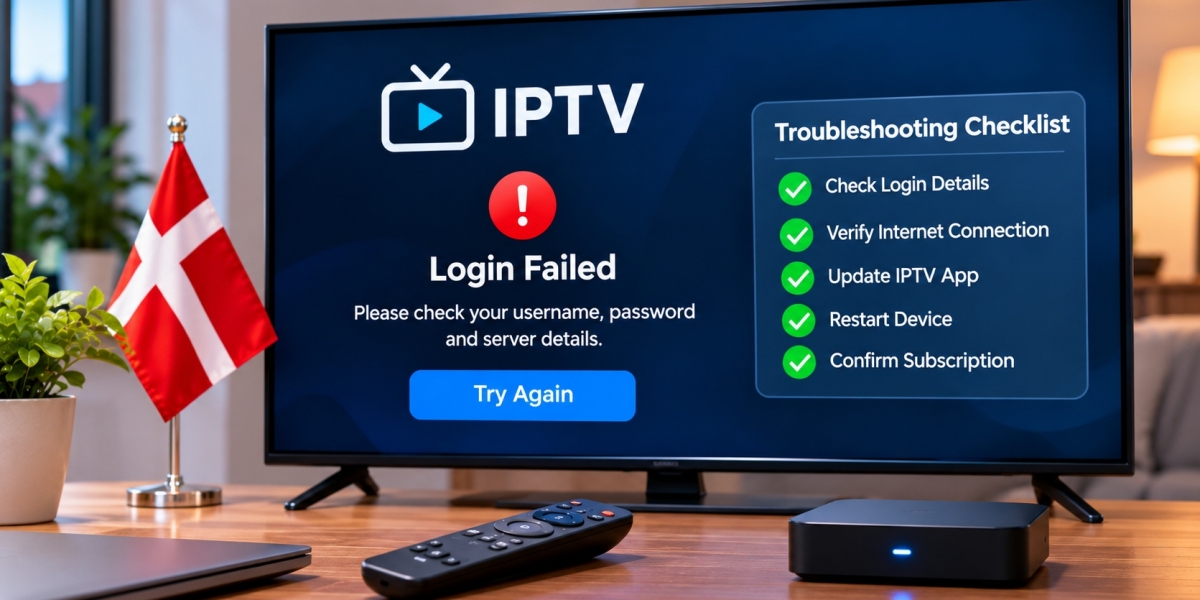

IPTV login problems can be frustrating, especially when the application worked previously or when the same account functions on another device. A player may show an invalid login message, refuse to load a playlist, display an empty channel list, or remain stuck while connecting to the server.
For viewers in Denmark, these problems do not always mean that the IPTV service is unavailable. Incorrect credentials, application settings, network problems, expired account information, or device compatibility can all affect the login process.
This guide explains how to troubleshoot common IPTV login problems step by step.
Understand How IPTV Login Works
An IPTV player normally needs access information supplied by the IPTV service.
Depending on the provider and application, this information may include:
Username
Password
Server address
M3U playlist URL
Portal URL
Xtream-style login details
The IPTV player then uses this information to connect to the service and organise the available content.
Installing an IPTV application alone does not normally provide television channels.
Check the Username and Password First
Typing errors are one of the simplest causes of failed IPTV logins.
Usernames and passwords may contain:
Capital letters
Lowercase letters
Numbers
Symbols
Enter the information exactly as supplied.
Watch for Extra Spaces
Copying login information from an email or message can sometimes add a space before or after the text.
An invisible space may cause the login to fail even when the username or password appears correct.
If possible, remove the existing details and enter them again carefully.
Confirm the Server Address
Account-based IPTV login often requires a server address in addition to the username and password.
The address must be entered correctly.
Common errors include:
Missing characters
Incorrect punctuation
Wrong port information
Adding unnecessary spaces
Entering an outdated server address
If the provider supplied updated information, make sure the IPTV player is not still using older details.
Check the M3U Playlist URL
When an IPTV player uses an M3U playlist, the complete URL needs to be correct.
Playlist addresses can be long, making them easy to enter incorrectly with a remote control.
Copying and pasting the URL is usually more reliable when the device supports it.
Remember that an M3U URL may contain account-specific information, so avoid sharing it publicly.
Check Whether the Subscription Is Active
A login may stop working if the subscription period has ended.
If the account previously worked but suddenly fails on every device, check the current subscription status.
Do not assume the player itself is faulty until account information has been confirmed.
If the service provides an account panel or current subscription information, review it before reinstalling applications.
Test the Internet Connection
The IPTV player cannot verify account information without an internet connection.
Try opening another internet-based application on the same device.
If other services also fail to connect, the problem may be the home network rather than the IPTV login.
Restart the Router
Restarting the router can resolve temporary network problems.
Allow the connection to return fully before opening the IPTV application again.
Compare Wi-Fi and Ethernet
If the device supports Ethernet, connect it directly to the router and test again.
If the login works over Ethernet but fails or behaves inconsistently over Wi-Fi, investigate the wireless network.
Try the Login on Another Device
Testing the same account on another compatible device can provide useful information.
For example, if the account fails on a Smart TV but works on a phone, the problem may involve:
The Smart TV application
Device settings
App compatibility
Local network configuration
If the login fails everywhere, the problem is more likely related to the account details, service connection, or network.
Check the IPTV Player
Different IPTV applications support different login formats.
A service that provides M3U information may not work in an application designed only for another connection method.
Before changing your subscription details, verify that the player supports the format you received.
Update the Application
An outdated IPTV player may develop compatibility problems.
Check the official application store for updates.
Updates may improve:
Login handling
Playlist loading
EPG support
Device compatibility
Security
Performance
Restart the application after updating it.
Restart the Streaming Device
Temporary system problems can interfere with IPTV applications.
Restart the:
Smart TV
Android TV device
Fire TV device
Apple TV
Computer
Smartphone
Tablet
and then try the login again.
A full restart is different from simply closing and reopening the IPTV app.
Clear Temporary App Data Carefully
Some devices allow users to clear an application's cache or temporary storage.
This can help when outdated data prevents the player from loading correctly.
However, clearing application data may also remove saved login details.
Before doing this, make sure you have the correct IPTV credentials available.
Do not delete account information unless it can be restored.
Avoid Reinstalling Too Quickly
Reinstalling the IPTV application should not always be the first troubleshooting step.
A better order is:
Check the internet connection.
Verify username and password.
Confirm the server or playlist URL.
Restart the application.
Restart the device.
Update the player.
Test another device.
Reinstall only if necessary.
This method makes it easier to identify the actual cause.
Check Device Compatibility
An IPTV account can work correctly while a particular application or device remains incompatible.
Compatibility may vary between:
Samsung Smart TV
LG Smart TV
Android TV
Google TV
Fire TV
Apple TV
iPhone and iPad
Windows
macOS
Before choosing a longer subscription, confirm that the provider supports the device and connection method you intend to use.
Viewers comparing IPTV subscriptions and setup options for the Danish market can include DANMARK IPTV when researching device compatibility, installation guidance, and available subscription choices.
Checking these details early can reduce login and configuration problems later.
What Does “Invalid Login” Usually Mean?
An invalid login message commonly indicates that one or more credentials have not been accepted.
Possible causes include:
Incorrect username
Incorrect password
Wrong server address
Expired subscription
Typing error
Unsupported login format
Do not repeatedly guess passwords because this can make troubleshooting more confusing.
Return to the original access information and compare each field carefully.
What If the Login Works but No Channels Appear?
Successful login does not always guarantee that the channel list will immediately display.
The player may still need time to download and organise the account data.
Possible causes of an empty list include:
Playlist still loading
Application cache problem
Channel categories hidden
Playlist refresh required
Temporary server issue
Player compatibility problem
Look for an option such as:
Refresh playlist
Update channels
Reload account
Synchronise content
before rebuilding the entire setup.
Why Does the Login Keep Loading?
An IPTV player that remains on a loading screen may be waiting for data rather than rejecting the account.
This can happen when:
The internet connection is unstable
The playlist is large
The device is slow
The application has limited memory
The service is temporarily unreachable
Wait briefly before forcing the application to close.
If the problem continues, restart the device and test the connection.
Check Available Device Storage
Smart TVs and streaming devices often have limited storage.
Very low free storage can affect application performance.
Remove unused applications or unnecessary files where appropriate.
Do not delete system applications or data unless you understand their purpose.
Check Date and Time Settings
Incorrect date or time settings can sometimes interfere with network services.
Make sure the device is configured for the correct local time.
For viewers in Denmark, automatic date, time, and timezone settings are usually the simplest option.
This can also help electronic programme guide schedules remain accurate.
Avoid Sharing IPTV Credentials
Login details should remain private.
Do not post:
Username
Password
M3U URL
Server address
Portal URL
on public forums or social media.
If you need technical support, hide sensitive information before sending screenshots.
A playlist URL can sometimes contain login details directly within the address.
Do Not Use Random Login Generators
Websites or applications claiming to generate IPTV usernames, passwords, or premium accounts should be treated cautiously.
They may expose users to:
Misleading downloads
Unsafe websites
Stolen credentials
Unreliable services
Privacy risks
Use only account information supplied through a service you have chosen and evaluated.
Login Problems After Changing Devices
If you recently moved from one device to another, the login method may need to be configured differently.
For example, an Android TV application may support username and password login, while another Smart TV app may require an M3U URL.
Check the setup instructions for the new device instead of copying every setting from the old one.
Login Problems After Changing Passwords
If the provider changes account credentials, every device using the old login information may need to be updated.
Make sure old passwords or playlist addresses are not saved inside:
Smart TVs
Streaming boxes
Mobile apps
Computers
Update devices one at a time and test each setup before moving to the next.
Test One Change at a Time
Changing several settings simultaneously makes troubleshooting difficult.
For example, avoid changing the password, server address, application, and network configuration all at once.
Instead:
Verify the credentials.
Test the connection.
Restart the app.
Test again.
Update the player.
Test again.
This approach makes it easier to determine what solved the problem.
Keep a Secure Copy of Setup Information
Keeping a private copy of your original IPTV access details can make future troubleshooting easier.
Store the information securely and avoid placing it in publicly accessible documents.
Useful information may include:
Account username
Server address
Subscription expiry information
Supported login format
Recommended player
Passwords should be stored using an appropriate secure method.
Content Licensing Still Matters
IPTV login methods are technical tools used to connect players with television services.
They do not determine whether the underlying content is authorised.
Licensing and distribution rights remain important when evaluating any IPTV provider.
Viewers in Denmark should research services carefully and consult current Danish rules or reliable legal information when uncertain about a particular provider or source.
Final Thoughts
Most IPTV login problems can be investigated without immediately replacing the application, device, or subscription.
Start with the basics. Verify the username, password, server address, or M3U URL, then check the internet connection and restart the application.
If the account works on one device but not another, focus on player compatibility and local device settings. If it fails everywhere, review the account information and subscription status.
By troubleshooting one step at a time and keeping login details secure, viewers in Denmark can identify common IPTV connection problems more efficiently and maintain a simpler streaming setup.